Naruto Senki Black Screen Fix: How to Solve the Black Screen Problem
Naruto can sometimes open with a black screen, leaving you unable to see the gameplay or start a battle. The Naruto Senki black screen fix depends on the cause, but a few simple troubleshooting steps help you solve the problem.
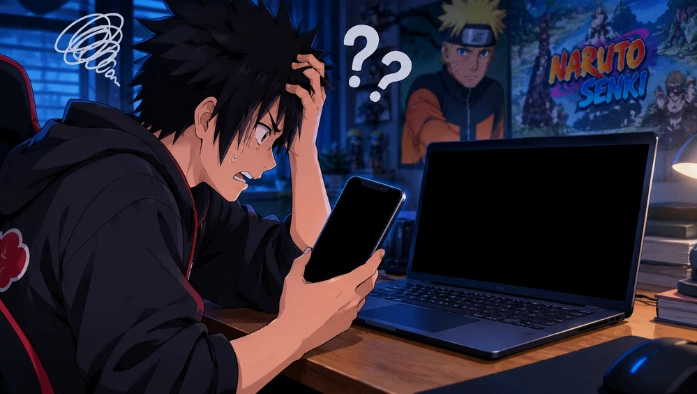
This article explains the common reasons behind this issue and shows you how to fix it on Android and PC. You will also learn what to try if the game still shows a black screen after following the suggested steps.
Why Is Naruto Senki Showing a Black Screen?
The game shows a black screen for several reasons, depending on your device and game version. Here are some common causes of this problem.
Incompatible Game Version
An older game version does not work properly on some newer devices. If the game is not compatible with your Android version, it gets stuck on a black screen when you try to open it.
Corrupted or Incomplete Game File
If the game file was not downloaded completely or became corrupted, Naruto Senki fails to start correctly. In this case, checking the file and getting a complete copy will help.
Insufficient Device Resources
Phones with limited RAM or very little free storage struggle to launch some games. Other apps running in the background can also use resources and cause startup problems.
Android Compatibility Issues
Some versions do not work properly on every Android device. Differences in Android versions, hardware, or app compatibility can prevent the game from loading as expected.
Naruto Senki Black Screen Fix: 5 Ways to Solve the Problem
Restart Your Phone
Restarting your phone can help fix temporary errors that stop Naruto from opening properly. Turn off your phone, wait a few seconds, and turn it back on. Then launch the game again to check whether the black screen is gone.
Clear the Game Cache
Temporary app files can sometimes cause loading problems. To clear the cache, open Settings, go to Apps, select Naruto Senki, tap Storage, and choose Clear Cache. The menu names may vary depending on your phone. Avoid tapping Clear Data unless you understand that it may remove saved app data.
Check Available Storage
Low storage space can affect how apps work on your phone. Open your phone’s storage settings and check how much free space is available. If storage is nearly full, remove unnecessary files or apps, then restart and see if it loads properly.
Update Your Android System
An outdated Android version can cause compatibility problems with some apps. Open Settings, find Software Update or System Update, and check whether an update is available for your device. Install updates from your phone’s official settings, if available, and try opening the game again.
Reinstall Naruto Senki
If the previous methods do not work, reinstalling the game can help resolve damaged installation files. First, remove the existing game and restart your phone. Then install a fresh, compatible copy from a trusted source. Keep in mind that uninstalling the game may delete saved data, so back up anything important if possible.
How to Fix Black Screen on PC
If Naruto Senki shows a black screen on your PC, first restart your Android emulator, such as BlueStacks, LDPlayer, or MEmu. Make sure the emulator is updated and your PC has enough free RAM to run the game. You can also open the emulator settings and try switching the graphics mode if that option is available.
After making changes, restart the emulator and launch again. If the problem continues, check whether your game version is compatible with the emulator.
FAQs
Conclusion
Naruto Senki shows a black screen because of compatibility issues, low available RAM, or temporary app errors. You can try restarting your device, clearing the game cache, freeing up storage, or reinstalling the game to fix the problem. If the issue continues, check your device or emulator compatibility before installing the game again.