Naruto Senki Lag Fix: How to Fix Slow Gameplay and FPS Drops
You open the game and are ready for a quick battle, but the game stutters, the controls respond late, and the FPS drops right when you need a perfect dodge. If you’ve been searching for a Naruto Senki lag fix, you’re not alone, because this is frustrating and it happens to a lot of players, whether they’re on an older Android phone or running the game on a PC emulator.
The good news is that most lag problems come from a few simple causes, and you can fix them without any technical skills. We’ll look at why the game slows down and the quick changes that can make it run smoothly again on both Android and PC.
Why Is the Game Lagging?
Naruto is not a heavy game, but it still needs enough memory and power to run smoothly. If your phone or PC does not have enough resources, the game becomes slow. Characters move slowly, controls respond late, and the game lags during fights.
Low device resources
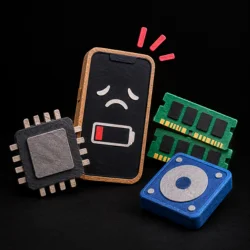
Phones with limited RAM or an older processor struggle to handle fast fights, especially when many effects appear on screen at once.

Background apps
Social media, music players, and downloads quietly eat up memory and CPU, leaving less for the game.

Limited storage
When your storage is almost full, the system has little room to load game data quickly, which causes stutters.

Device overheating
A hot phone or PC automatically slows itself down to protect the hardware, and your FPS drops as a result.

Compatibility issues
Some game versions don’t work well with certain Android versions, devices, or emulators, which leads to unstable performance.
General Fixes
If you want to know how to reduce lag in Naruto Senki, start with these simple fixes. They take only a few minutes, and in many cases they’re enough to solve slow gameplay without touching any advanced settings.
Close Background Apps
Apps running in the background use your phone’s memory and processor. Close apps you are not using, such as social media, video apps, and downloads. If you play on a PC, close extra browser tabs and programs before starting the game or emulator. This can help Naruto Senki run more smoothly, especially on low-end devices.
Restart Your Device
Restart your phone or PC to close apps and processes running in the background. If your device has been running for a long time and the game is lagging, restarting it helps the game run more smoothly.
Free Up Storage Space
When your storage is almost full, the device struggles to load and save game data, which leads to stuttering. Delete old videos, unused apps, and large files you don’t need.
Let Your Device Cool Down
When your phone gets too hot, it slows down and causes Naruto Senki to lag. If your phone feels hot, let it cool down for 10–15 minutes. Remove the phone case, avoid playing while charging, and keep your phone away from direct sunlight.
Clear the Game Cache
Sometimes, the game lags because of old or damaged cache files. You can fix this by opening your phone’s Settings > Apps > Naruto Senki > Storage > Clear Cache. This removes temporary files and helps the game run smoothly. Don’t tap Clear Data, as it deletes your game progress.
How to Fix Naruto Senki Lag on Android
The general fixes help a lot, but Android has a few extra settings that can make the game run much smoother.
Use Developer Options
Developer options are hidden by default, but you can turn them on easily. Open Settings, go to About Phone, and tap Build Number seven times. Then open Developer Options and find Window Animation Scale, Transition Animation Scale, and Animator Duration Scale. Set each option to 0.5x or turn it off.
This can make your phone feel faster and help improve your gaming experience on low-end devices. Avoid changing other settings if you don’t know what they do.
Turn Off Battery Saver Mode.
Battery saver slows your processor to save power, and that’s a common reason for slow gameplay. Open your quick settings panel or go to Settings, then Battery, and switch battery saver off before you start playing.
If your phone has a performance or gaming mode, turn that on instead.
Frequently Asked Questions
Conclusion
Naruto Senki lags because of low RAM, full storage, too many apps, or a hot phone. Close extra apps, free up space, and clear the cache to get started. If it still lags, try the Android tweaks or give your emulator more RAM on PC. With these simple steps, your lag fix is done, and the game will run smoothly again.